Time Write Up / Write Down Reversal |
| The Time Write Up / Write Down Reversal routine
allows the user to reverse adjustments to the amount of Time entered on posted Time
Entries, as made in the Time Write Up / Write Down routine. To reverse
Time adjustments, the user must first execute a query based on criteria pertaining to the
Time Entries that were adjusted. For example, to reverse a time adjustment made to Time
Entries between February 13 and February 17 for Client # 345, the user must use those
dates as criteria when entering their query. Once the query is executed, the query results
will be displayed in the Time Entry Details section, and the user may then select from the
results which Time Entry adjustments are to be reversed. Note: Only transactions that occurred in the Time Write Up / Write Down routine can be reversed through this form. In addition, to be eligible for reversal, the last transaction performed on a Time Entry MUST have been the time adjustment. For example, if the user writes up a Time Entry and then performs another action such as recalculates the rates used, or selects it for Billing, the time adjustment can no longer be queried for reversal. When the Time Write Up/Write Down Reversal routine is accessed from the eQuinox main menu, the screen shown below will be displayed. |
| Field Definition |
 |
|
|
| The first four fields on this
screen display the Journal Type (TMWDX,
TMWUX) and the Journal Number.
Posting Date
Acct Period Entering Query
Criteria |
|
|
Query
Dates Between Before executing a query, the user must select the range of dates for which they wish to view Time Entry adjustment records. Selections may be made from the Calendars provided. |
|
Sort
By Before executing a query, the user must specify the order in which the Time Entry adjustment records will be sorted. A selection may be made from the drop-down list provided. |
|
|
Time Entry Details |
|
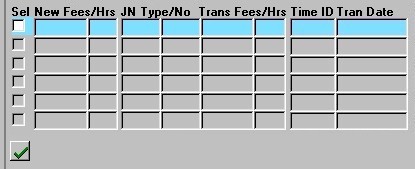
Sel The Yes/No (checked/unchecked) value of this field indicates whether or not the Time Entry adjustment for the current record will be reversed. Once the user has selected the records, they must then click the Save button or press F10. |
| To either select or
deselect all records currently displayed, the user may simply click the
"Green Check Mark
Button" button. When all records are selected, the button serves as a means
of deselecting all records; when all records are not selected, the button serves as a
means of selecting all records.
New Fees/Hrs
JN Type, JN No Trans Amt/Hrs Time ID Tran Date |
|
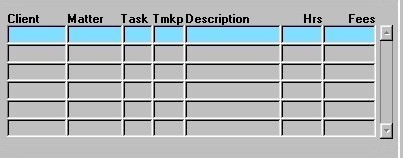
| Client,
Matter The unique identifiers of the Client/Matter associated with the current Time Entry. The corresponding Client and Matter names are displayed below. This information cannot be edited by the user, but this field can be used for querying purposes. |
|
|
Task
The unique identifier of the Task Code associated with the current Time Entry. The corresponding Task Description is displayed below. This information cannot be edited by the user, but this field can be used for querying purposes.
Tmkp
Description OS Hours, OS Fees |
|
|
Client Name, Matter Name
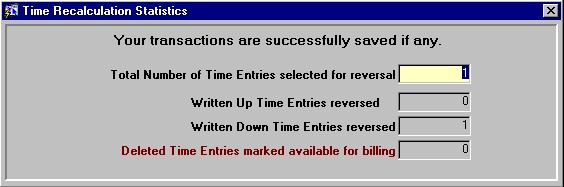
Timekeeper Name Task Description Once all desired Time Entries have been selected for adjustment reversals, the user must either click the Save button or press F10 to actually complete the reversal process. When the process is complete, the user is presented with a confirmation message (as seen below), summarizing the changes that have been made. |
|