Create Invitee List |
| The Create Invitee List routine allows the user to
create a list of people who will be invited to a particular Marketing Event. Invitees can
be selected according to Clients, Bill Entities, Timekeepers, or from invitee lists from
previous Marketing Events. The Marketing Events for which the user is selecting invitees
are as entered and maintained through the Marketing routine. Once an
invitee list has been created, it can be maintained through the Manage Invitees
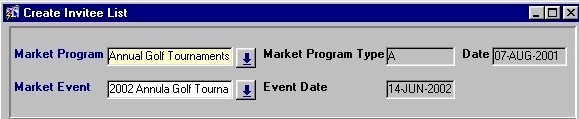
routine. When the Create Invitee List routine is accessed from the eQuinox main menu, the screen shown below will be displayed. |
| Field Definition |
 |
|
|
Market
Program The Marketing Program associated with the Marketing Event for which the user is creating an invitee list. A selection may be made from the List of Values provided. The Marketing Programs that appear in the list are as entered and maintained through the Marketing routine.
Market
Event
Market Program Type
Event Date
Date |
|
|
Select
Invitees From In the Select Invitees From section, the user must select an option by which to select persons that will be added to the invitee list. |
|
Filter
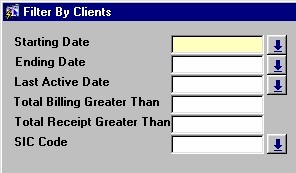
Invitees By Clients When the user selects the Clients option, the Filter By Clients screen seen below appears. In this screen, the user can enter filtering criteria to specify the type of Client they wish to include or exclude from the list. To include all Clients and their contacts in the list, the user can leave the fields on this screen blank and then click the Create List for Clients button. |
|
Starting
Date, Ending Date To include Clients in the list with a specific starting or ending date, the user must enter the dates here. For example, to include only those Clients who came to the Firm after a certain date, the user must enter that date in the Starting Date field. A selection may be made from the Calendar provided. |
|
Last Active Date To include in the list only those Clients that have been last active within a specified time range, the user must enter that date here. For example, to include only those Clients who have been last active within the past month, the user must enter a date from last month in this field. A selection may be made from the Calendar provided.
Total
Billing Greater Than Total Receipt Greater Than
SIC Code |
|
|
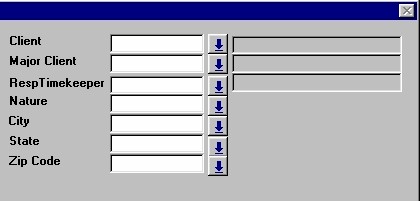
Client To include in the list only those contacts associated with a specific Client, the user must enter that Client here. A selection may be made from the List of Values provided. The Client's unique identifier and name will be displayed. |
|
|
Major Client To include in the list only those contacts associated with a specific Major Client, the user must enter that Major Client here. A selection may be made from the List of Values provided. The Major Client's unique identifier and name will be displayed.
Resp Timekeeper
Nature
City, Province,
Postal Code |
|
|
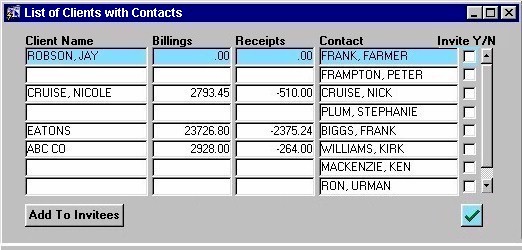
Once the user has entered all the necessary filtering criteria, they can click the Create List for Clients button to create a list of all Clients and their associated contacts that fit the criteria entered. The List of Clients with Contacts screen will appear, displaying the list. |
|
|
Client
Name The names of the Clients that fit the filtering criteria entered in the Filter by Clients screen.
Billings
Receipts
Contact
Invite Y/N |
|
Filter
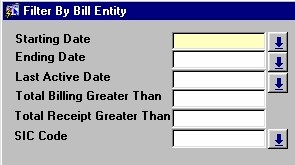
Invitees By Bill Entity When the user selects the Bill Entity option, the Filter By Bill Entity screen seen below appears. In this screen, the user can enter filtering criteria to specify the type of Bill Entity they wish to include or exclude from the list. To include all Bill Entities and their contacts in the list, the user can leave the fields on this screen blank and then click the Create List for Bill Entities button. |
|
|
Starting
Date, Ending Date To include Bill Entities in the list with a specific starting or ending date, the user must enter the dates here. For example, to include only those Bill Entities who came to the Firm after a certain date, the user must enter that date in the Starting Date field. A selection may be made from the Calendar provided. |
|
Last
Active Date To include in the list only those Bill Entities that have been last active within a specified time range, the user must enter that date here. For example, to include only those Bill Entities who have been last active within the past month, the user must a date from last month in this field. A selection may be made from the Calendar provided.
Total Billing Greater Than
Total Receipt Greater
Than
SIC Code |
|
|
Bill
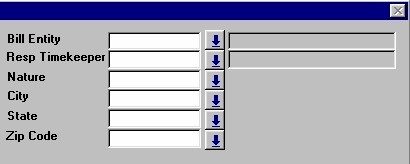
Entity To include in the list only those contacts associated with a specific Bill Entity, the user must enter that Bill Entity here. A selection may be made from the List of Values provided. The Bill Entity's unique identifier and name will be displayed. |
|
|
Resp
Timekeeper To include in the list only those Bill Entities associated with a specific Responsible Timekeeper, the user must enter that Timekeeper here. A selection may be made from the List of Values provided. The Timekeeper's unique identifier and name will be displayed.
Nature
City, Province,
Postal Code |
|
|
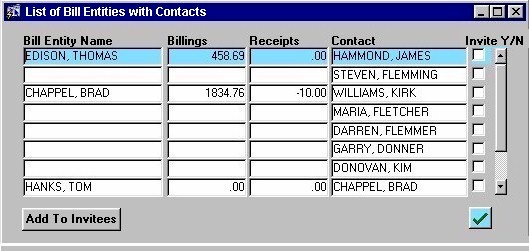
Once the user has entered all the necessary filtering criteria, they can click the Create List for Bill Entities button to create a list of all Bill Entities and their associated contacts that fit the criteria entered. The List of Bill Entities with Contacts screen will appear, displaying the list. |
|
|
Bill
Entity Name The names of the Bill Entities that fit the filtering criteria entered in the Filter by Bill Entity screen.
Billings
Receipts
Contact
Invite Y/N |
|
Filter
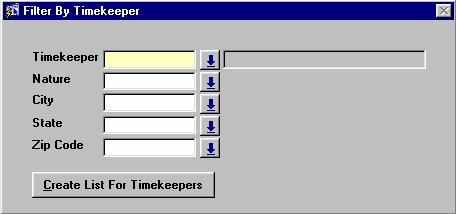
Invitees By Timekeeper When the user selects the Timekeeper option, the Filter By Timekeeper screen seen below appears. In this screen, the user can enter filtering criteria to specify the type of Timekeeper they wish to include or exclude from the list. To include all Timekeepers and their contacts in the list, the user can leave the fields on this screen blank and then click the Create List for Timekeepers button. |
|
|
Timekeeper To include in the list only those contacts associated with a specific Timekeeper, the user must enter that Timekeeper here. A selection may be made from the List of Values provided. The Timekeeper's unique identifier and name will be displayed.
Nature
City, Province,
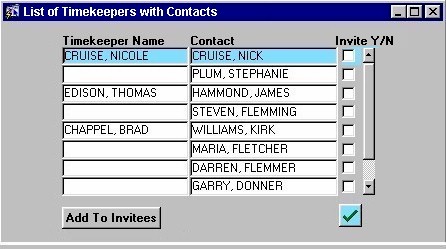
Postal Code Once the user has entered all the necessary filtering criteria, they can click the Create List for Timekeepers button to create a list of all Timekeepers and their associated contacts that fit the criteria entered. The List of Timekeepers with Contacts screen will appear, displaying the list. |
|
|
Timekeeper
Name The names of the Timekeepers that fit the filtering criteria entered in the Filter by Timekeeper screen.
Contact
Invite Y/N |
|
Filter
Invitees By Previous Events When the user selects the Previous Event option, the fields seen below appear. This allows the user to select which Event they are selecting invitees from. |
|
|
Market
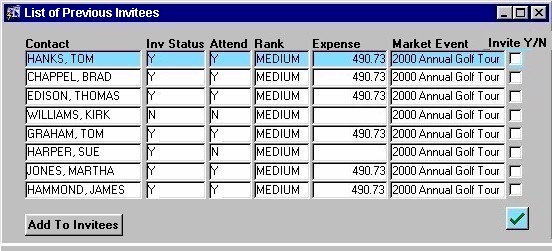
Event The Marketing Event from which the user is selecting invitees. A selection may be made from the List of Values provided. Once the user has selected an Event, they must then click the Add to List button. The List of Previous Invitees screen will then appear, displaying the invitee list from the selected Marketing Event. |
|
|
Contact The names of the contacts (invitees) that were on the invitee list for the selected Marketing Event.
Inv
Status
Attend
Rank
Expense
Market Event
Invite Y/N |