Manage Invitees

Return to the Marketing Menu

The Manage Invitees routine allows the user to manage the invitees for a particular Marketing Program. The Marketing Programs and Events referred to in this routine are those that are created and maintained through the Marketing routine. In the Invitees routine, the user can select who is invited to the Event, and can track responses, etc. The user can also track those who attended the Event (after the fact) and allocate Event expenses to those who attended. This routine also allows the user to create Invitee lists and mailing labels.

When the Manage Invitees routine is accessed from the eQuinox main menu, the screen shown below will be displayed.
 
Field Definition

Event Invitees

Market Programs
The name of the Marketing Program for which the user is managing Invitees. This information is displayed automatically once the user makes a selection from the List of Values provided in the next field. A selection must be based on both the Marketing Program and the Marketing Event. The Marketing Programs and Marketing Events that appear in the List are those that are entered through the Marketing routine.

Market Event
The name of the Marketing Event for which the user is managing Invitees.  A selection may be made from the List of Values provided.

Date
The date on which the current Marketing Event is scheduled to take place.

Event Invitees

Max No Inv
The maximum number of Invitees permitted for the current Event, as entered in the Marketing routine. This value is for display purposes only and cannot be edited or updated by the user.

Event Expense
The amount of expenses incurred to date for the current Event, as entered in the Marketing routine. This value is for display purposes only and cannot be edited or updated by the user.

Total Invited
The total number of people invited to the current Event. This number updates automatically as the user selects people to be invited (i.e. as the user 'checks' the Inv field).

Total Attended
The total number of people that attended the current Event. If the Event has yet to take place, this field will remain empty. After the Event, the user can select the Atnd field to track those who attended the Event; as the user 'checks' the Atnd field, the Total Attended number updates automatically.

Alloc Expense to Invitees
To allocate the Event expenses to those who attended the Event, the user can click this button (performed after the Event has taken place, and once the Atnd field has been 'checked' for all those who attended the Event). The total Event Expense will be evenly divided among those who attended the Event. The amount allocated to each person will be displayed in the Expense field.

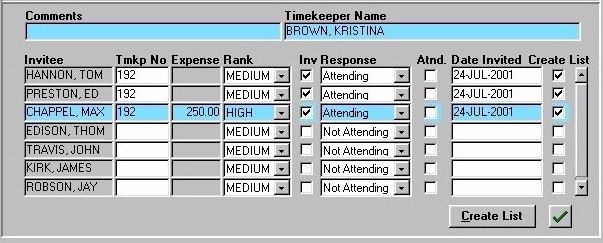
In the section seen below, all Invitees and potential Invitees for the current Marketing Event are displayed.

Event Invitees

Comments
Any comments or additional information that the user may wish to record for the current Invitee.

Timekeeper Name
The name of the Timekeeper associated with inviting the current Invitee, based on the selection made in the Tmkp field above. If an Invitee has not been invited, this field will remain blank.

Invitee
The names of all Invitees and all potential Invitees for the current Marketing Event. To add a person to this list, they must first be entered into the system as an entity through the Entity Manager routine.

Tmkp
The Timekeeper associated with inviting the current Invitee. A selection may be made from the List of Values provided. The unique identifier for the Timekeeper will be displayed here and the Timekeeper Name will be displayed below.

Expense
The expense, if any, that has been allocated to the current Invitee. To allocate the Event expenses to those who attended the Event, the user must click the Alloc Expense to Invitees button (performed after the Event has taken place, and once the Atnd field has been 'checked' for all those who attended the Event). The total Event Expense will be evenly divided among those who attended the Event. The amount allocated to each person will be displayed in the Expense field.

Rank
The attendance ranking for the current Invitee (i.e. the importance of their attendance). A selection may be made from the drop-down list provided.

Inv
To officially invite the current Invitee, the user must 'check' this field. As the user 'checks' this field for Invitees, the Total Invited field keeps a running total of the number of people invited to the current Event.

Response
The current Invitee's response to their invitation to the current Event. A selection may be made from the drop-down list provided.

Atnd
This field is for use after the Event has taken place. To keep track of those who actually attended the Event, the user can 'check' this field for each Invitee who attended. As the user 'checks' this field for Invitees, the Total Attended field keeps a running total of the number of people who attended the Event.

Date Invited
The date on which the current Invitee was invited to the Event. The default is the date on which the Inv field was checked, but if necessary a different date may be selected from the Calendar provided.

Create List   (Checkboxes)
To include the current Invitee in the lists made through the Listing sub-form (accessed by clicking the Create List button), the user must 'check' this field. To include all Invitees in the list, the user may click the "green check mark" button, which will automatically 'check' this field for all Invitees.

Create List (Button)
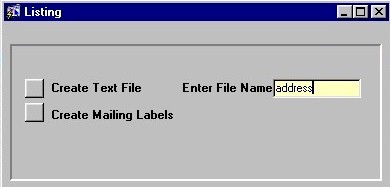
By clicking the Create List button, the user can access the Listing sub-form, seen below.

  
The Listing Sub-form

Event Invitees

The Listing sub-form allows the user to create a text file listing all Invitees that have the Create List field 'checked'. Before creating the text file, the user must enter a file name in the Enter File Name field. To create the text file, the user must click the Create Text File button.

The Listing sub-form also allows the user to create mailing labels for all Invitees that have the Create List field 'checked'. To create the mailing labels, the user must click the Create Mailing Labels button.


Return to the Marketing Menu