Maintain Taxes |
| The Maintain Taxes routine allows the user to establish and maintain the tax
structures that are to be used throughout the system. This routine should be used with
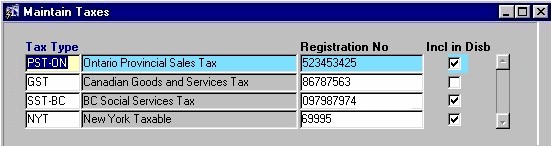
caution, as it will affect all Billing amounts and procedures. When the Maintain Taxes routine is accessed from the eQuinox main menu, the screen shown below will be displayed. |
| Field Definition |
 |
|
| Tax Type The type of Tax structure. A selection may be made from the List of Values provided. Once a selection is made, the Tax name/description will also be displayed. Note: To enter a new Tax Type into the system, the user must first enter the information in the Maintain Domain Definitions routine. The user can then return to this form, select the new Tax Type from the List of Values and establish the details for that Tax Type.
Registration
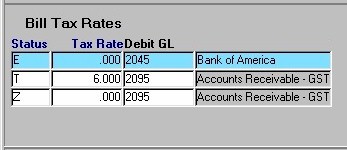
No Incl in Disb The Bill Tax Rates and WIP Tax Rates sections of the form display details specific to the Tax Structure selected in the first section. For example, in the screen sections shown here, the information in Bill Tax Rates and WIP Tax Rates is specific to the Ontario Provincial Sales Tax (shown above in blue). If the user were to select a different Tax Structure, the information in Bill Tax Rates and WIP Tax Rates would change to the details for the selected Tax Structure. |
|
The Bill Tax Rates
section of the form houses information about Taxes that are applied to Client Bills. For
more information on Bill Tax Rates, see the Glossary.
Status |
| Tax Rate The rate of the tax. The number in this field is in percentage format.
Debit GL |
|
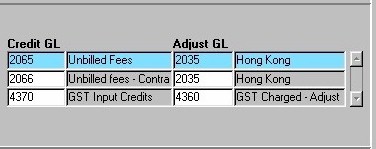
| Credit GL The General Ledger Account that is credited during transactions where this tax structure is applied. A selection may be made from the List of Values provided, which includes the entire GL structure. Once a selection is made, the General Ledger Account number and name/description will be displayed. |
|
| Adjust GL The General Ledger Account that carries adjustments for transactions where this tax structure is applied. A selection may be made from the List of Values provided, which includes the entire GL structure. Once a selection is made, the General Ledger Account number and name/description will be displayed. |
|
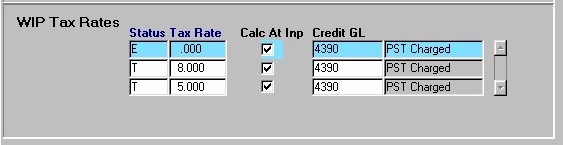
| The WIP Tax Rates section of the form (seen below) houses information about Taxes that are applied to Work In Progress . For more information on WIP Tax Rates, see the Glossary. | |
|
| Status The status of the tax structure (i.e. Taxable, Exempt, Zero Rated). A selection may be made from the List of Values provided.
Tax
Rate Calc At Inp Credit GL |
| Once the user has finished entering or updating information, they must click the Save button or press F10 to commit the changes to the database. |