Client File Parameters |
| The Client File Parameters routine allows administration to define the way in
which Client Files are handled within the Firm. Since making changes to the information in
this routine will affect the way the entire system operates, only those granted access
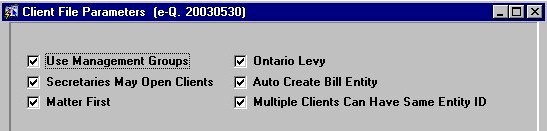
rights can use this routine. Note: Most of the Parameters maintained in this routine are defaults used throughout the system. For example, if the user uses the "Default Matter" option when opening a new Matter in the Maintain Matter Information routine, the parameters specified in this routine will be applied as defaults to the new Matter. To overwrite default values, the user may simply specify a different option/value. When the Client File Parameters routine is accessed from the eQuinox main menu, the screen shown below will be displayed. |
| Field Definition |
 |
|
| Use Management Groups The Yes/No (checked/unchecked) value of this field determines whether or not the Firm uses management groups. Management groups are a way in which Firms organize Timekeepers and/or Matters. Management Groups are unrelated Matters or Timekeepers that are grouped for some reason. For example, if two Timekeepers work well together, although they are from different Departments, they may form a Management Group.
Secretaries May Open Clients Matter First Ontario Levy Auto Create Bill Entity Y/N
Multiple
Client Can Have Same Entity ID |
|
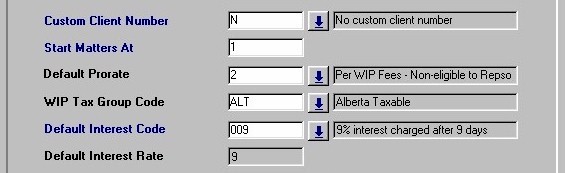
| Custom Client Number The selection made from this List of Values determines the format, if any, of custom Client numbers that the Firm uses when opening Client files. A selection may be made from the List of Values provided. Start
Matters At Default Prorate WIP Tax Group Code Default Interest Code, Default Interest Rate |
|
|
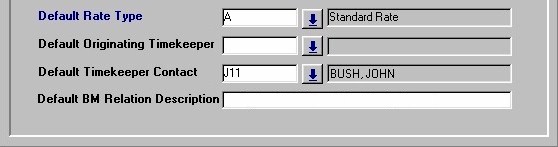
Default Rate Type In E-Quinox, Professionals may have various hourly rates (i.e. Legal Aid Rate, Standard Rate, Internal Rate); these different rates are classed as Rate Types. The Rate Type selected from the List of Values provided in this field will be the Rate applied by default to new Matters (i.e. Time posted to the Matter will be billed, by default, according to the Rate Type specified here).
Default
Originating Timekeeper Default Timekeeper Contact |
| Once the user has finished entering or updating information, they must click the Save button or press F10 to commit the changes to the database. |