
Year End Procedures

The
following instructions outline the process to follow when your firm is ready to
roll its year end:
When all the transactions for December
of the current year have been entered, run all of
the balancing reports that you would run at a regular month end.
Access the Maintain
GL Posting Parameters form. The path to this form is as follows:
Maintenance/System Admin/Parameters/Maintain GL Posting Parameters
Two choices are available for rolling the
month:
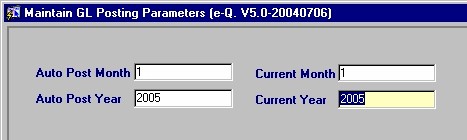
Close December (month
12) completely by setting the Auto Post Month and
Current Month settings
to "1" and the Auto Post Year and
Current Year to the new
year.
OR
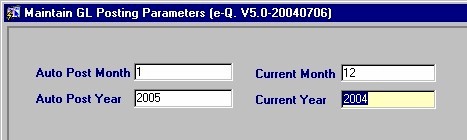
Keep December (month 12) open for accounting entries and open
January
for the auto time and bill posting by secretaries and lawyers. Do this by
setting the Auto Post Month to "1", leaving the Current
Month as "12", setting the Auto Post Year to the
number for the new year, and leaving the Current Year as the
number for the year that is closing. This
will allow accounting staff to enter transactions for both December and January while any
Time and Bill
posting done by other Timekeepers will go to the Auto Post Month of "1"
(January).
If
your Firm has a Year End date that does not coincide with the end of the
Calendar year, then normal Month End procedures apply at the end of
December; the procedures outlined above should be followed at the end of
which ever Calendar month represents you Firm's Fiscal year end.
When
you are ready to roll the year (whether a year end of December 31 or any other
month), the user must:
Access
the Process Year End form. The path to this form is as follows:
Maintenance/System Admin/Process Year End/Process Year End
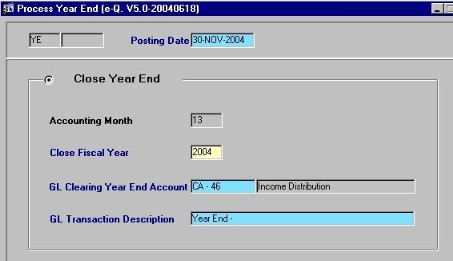
Confirm
that the proper information is displaying in the following fields:
Posting
Date
Close
Fiscal Year
(the fiscal year you are about to roll)
GL
Clearing Year End Account
(the GL account that the revenue and expense accounts will be cleared to.
Note that this account defaults from the settings in the Maintain GL Control Accounts form.)
GL
Transaction Description
(the default is "Year End - ", but
the user may enter a new description).
Once
the user is satisfied with the data
displayed in this form, they may then click the Save button on the
menu bar or press [F10]. Keep in mind that all of the year end transactions are being posted to
month 13 of the year that is closing.
The
following is an explanation of Month 13 and why year end closing
transactions are posted to this month:
All the year end transactions are kept isolated from
your regular December (or month 12) transactions. Operating statement comparisons will reflect accurate
balances for “Previous Year” instead of showing zeroes at the end of month
12.
All GL reports may be run for month
13.
If any adjusting entries are required after the closing of
the year, they
can be done with journal entries
to December (or month 12) of the closing year. To access the Post
Journal Entries form, follow the path Posting/Other Posting/Post Journal
Entries.
If entries are made after
the year end has been run, the user will need to reverse the Year End process and then rerun it, thereby
updating the transactions into month 13 of the closing year. Reports may then be run again.
To reverse the year
end, the user must access the Process Year End form (Maintenance/System
Admin/Process Year End/Process Year End) and select the Reverse Year
End option in the bottom block of the form.

