
Consolidating Multiple
Entities

Entity Consolidation is a feature that can only be used by those who have Administrative and/or Accounting privileges in the e-Q system. Entity Consolidation is performed though the Entity Manager screen, and allows the user to "merge" multiple entitles into one.
Follow the menu path:
Maintenance --> Entity --> Entity Manager
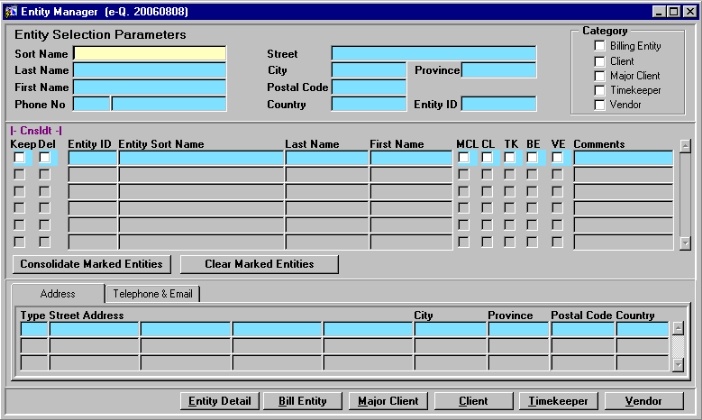
Figure 1 - The Entity Manager Screen
Before a consolidation can occur, the user must first query up the entities that will be involved.
The user must enter their query restrictions in the Entity Selection Parameters section of the screen, and then press [F8] to execute the query.
The results will be displayed in the middle section of the screen (Figure2), where the consolidation actually takes place.
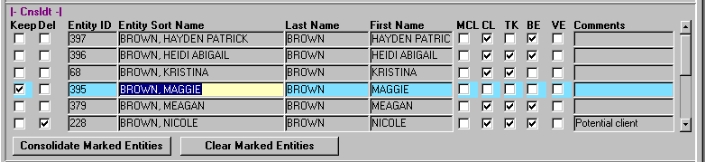
Figure 2 - Consolidating the Entities
From the query results, the user must select the entity into which the other(s) are being consolidated. In other words, the user must select which entity is being "kept"
To make the selection, the user must 'check' the Keep field for the entity. In Figure 2, Entity 395 is being kept.
The user must then select the entity (or entities) that are being removed from the system and merged with the entity being kept
To make the selection(s) the user must 'check' the Del field for the entity (or entities). In Figure 2, Entity 228 is being deleted.
Once all selections are made, the user must then click the Consolidate Marked Entities button (pressing Save or [F10] will NOT work here)
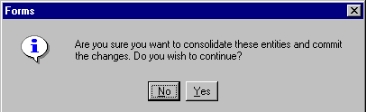
Figure 3 - Alert
The user will be presented with a message, asking if they want to continue with the consolidation.
This gives the user a final chance to verify their selections.
To continue, click Yes; to cancel the consolidation, click No
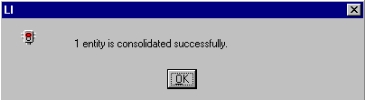
Figure 4 - Conformation
Once the consolidation is complete, the user will be presented with a confirmation message, as seen in Figure 4.
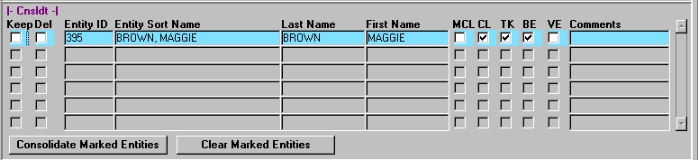
Figure 5 - Requery
Once the consolidation is complete, the user will not be able to query up the entity that was deleted.
Also, if the user re-queries the entity that was kept, they will be able to see all the information from the other file(s) that was carried over.
In the case of the example used here, when entity 395 is re-queried, it is clearly seen that the Client, Timekeeper, and Bill Entity files from entity 228 have been carried over.
Note: Should a problem arise with affiliation duplicates, the user can simply delete the unwanted affiliation.