Closing
Files

The
Close Client Matters screen can be accessed by following the menu path:
Maintenance -->
Entity -->
Client/Matter -->
Close Client Matters
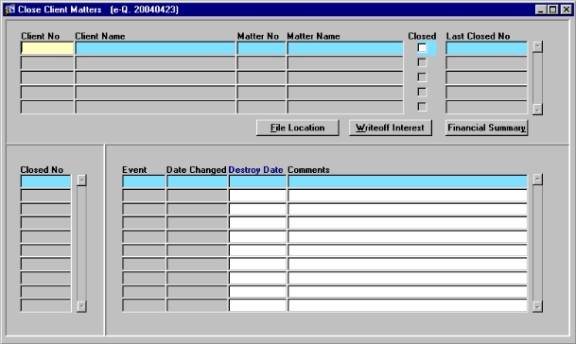
Figure
1 – The Close Client Matters Screen
To
close a file with nothing outstanding :
-
Enter
the Client No and Matter No, then press [F8] query back
the Client/Matter information
-
Check
the Closed field (either with a mouse click or with a press of the
space bar)
- If
there is nothing outstanding with this Matter, the user will be presented
with a sub-screen, as seen in Figures 2 and 3

Figure
2 – Entering the Closed File Information on a file that has not been
previously closed
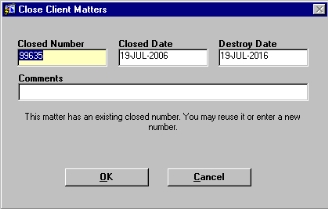
Figure 3 – Entering the Closed File
Information on a Previously Closed File
-
If
the file has never been closed before, the Closed Number field will
default to the next sequential Closed Number available in the system
-
If
the file has been closed before, the Closed Number field will default
to the Closed Number used the last time the file was closed
-
In
either case, the user can accept the default number or enter one of their
own, as long as it is unique to the system
-
The
Closed Date field defaults to the current System Date
-
The
Destroy Date defaults to ten years past the Closed Date
-
If
necessary, the user can press [F9] in the Date fields to select a
different date from the calendar
-
The
Comments field allow the user to enter any additional information
that may need to be recorded regarding the closing of this file
-
Once
all information has been entered and verified, the user must click the Ok
button on the sub-screen
- The
information is taken from the sub-screen and displayed in the bottom block
of the main screen, and the file is now closed
To
close a file with unposted time :
- If
a Matter has unposted time, the user will be alerted with a message when
they try to close the Matter, as seen in Figure 4

Figure 4 – Outstanding Unposted Time
-
If
this unposted time is not going to be billed, the user must delete the time
through the Time Recorder screen
-
Follow
the menu path: Desktop
--> Time Recorder
-
The
Time Recorder screen is launched, as seen in Figure 5
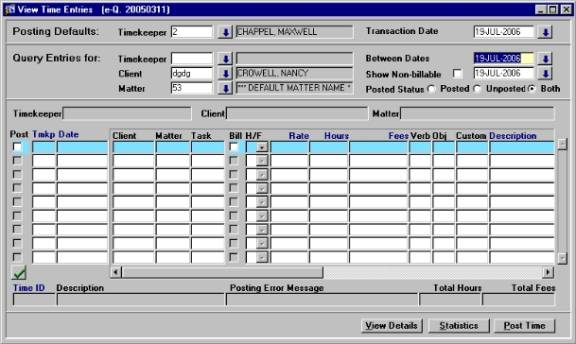
Figure
5 – The Time Recorder Screen
-
In
the Query Entries For section, enter the number of the Client/Matter
that you are closing, then press [F8] to query back all unposted time
for that Matter
-
Highlight
the time entries and then press [Shift] + [F6] OR click the Delete
(red X) button on the menu bar
-
Once
all time has been deleted, the user can return to the Close Client
Matters screen and check the Closed field for that record to
close the file
To
close a file with outstanding financials (posted time, posted disbursements,
trust) :
-
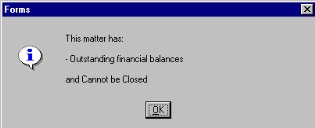
If
a Matter has outstanding posted time, disbursements, and/or trust money, the
user will be alerted with a message when they try to close the Matter,
stating that there are outstanding financials for this Matter, as seen in
Figure 6
-
To
review details of the outstanding financials, the user must click the
Financial Summary button found on the right hand side of the top block of
the Close Client Matters screen
-
The
Financial Summary screen will be launched, displaying a financial
snap-shot for this Client Matter, as seen in Figure 7
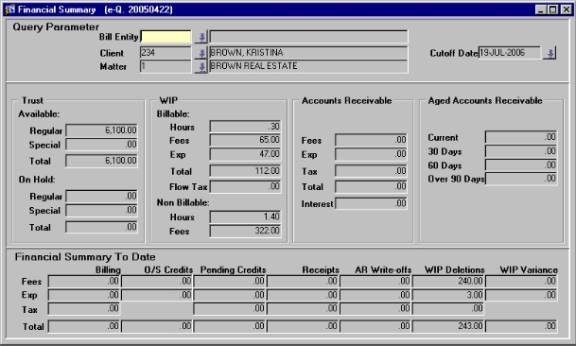
Figure
7 – The Financial Summary Screen – Reviewing Outstanding Financials
-
If
the Client has trust on file, a trust cheque must be drawn and
cleared, returning the Client’s trust balance to zero, before the Matter
can be closed
-
If
the Client has posted time that is not going to be billed, the user
must write this time off through the Time Write Up/Write Down program
-
Follow
the menu path:
Primary Operations à
Posting à
Work In Progress à
Time à
Time Write Up/Write Down
-
The
Time Write Up/Write Down screen will be launched, as seen in Figure 8
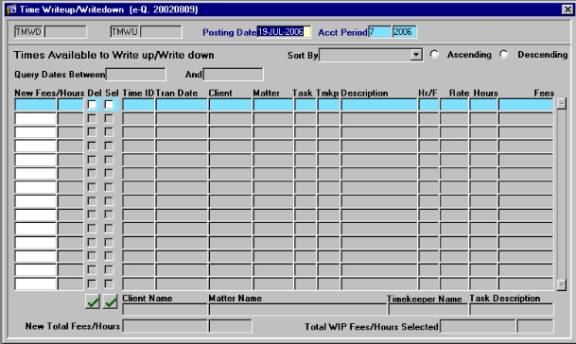
Figure
8 – The Time Write Up/Write Down Screen
-
Press [F7] to switch
to enter query mode
-
In the Client and Matter
fields, enter the numbers for the Client Matter you want to close
-
Press [F8] to execute
the query and return all outstanding posted time records for this Matter
-
For each record, check the Del
(Delete) field with a mouse click OR by pressing the space bar
-
The Sel (Select) field
will be checked automatically after the Del field is selected
-
Press [F10] or the Save
button on the menu bar to post the changes
-
The posted time has now been
removed from the file and the user can return to the Close Client Matters
screen and check the Closed field for that record to close the
file
-
If
the Client has posted disbursements that are not going to be billed,
the user must write these disbursements off through the Disbursements Write
Down program
-
Follow
the menu path Primary Operations -->
Posting --> Work In Progress --> Disbursements -->
Disbursement Write Down
-
The
Disbursement Write Down screen will be launched, as seen in Figure 9
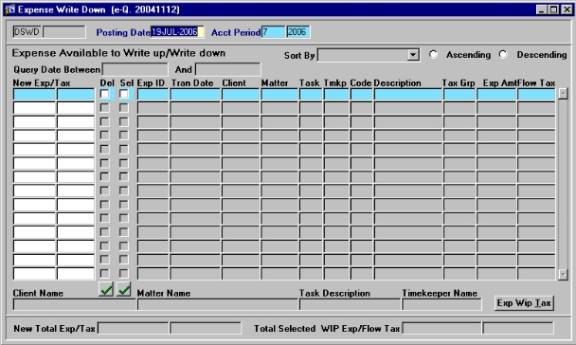
Figure
9 – Disbursement Write Down Program
-
Press [F7] to switch
to enter query mode
-
In the Client and Matter
fields, enter the numbers for the Client Matter you want to close
-
Press [F8] to execute
the query and return all outstanding disbursements for this Matter
-
For each record, check the Del
(Delete) field with a mouse click OR by pressing the space bar
-
The Sel (Select) field
will be checked automatically after the Del field is selected
-
Press [F10] or the Save
button on the menu bar to post the changes
-
The disbursements have now
been removed from the file and the user can return to the Close Client
Matters screen and check the Closed field for that record to
close the file
To
close a file with outstanding limitation events :
-
If
a Matter has scheduled events that have not yet been completed, the user
will be alerted with a message when they try to close the Matter, stating
that there are outstanding events for this Matter, as seen in Figure 10
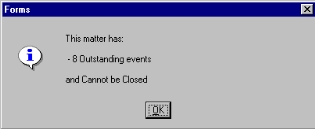
Figure 10 – Closing a file with
outstanding limitation events
-
These
events must be reviewed and closed through the Case Management
sub-screen, accessed through the Maintain Matter screen
-
Follow
the menu path:
Maintenance -->
Entity
-->
Client/Matter -->
Maintain Matter
-
The
Maintain Matter screen will be launched, as seen in Figure 11
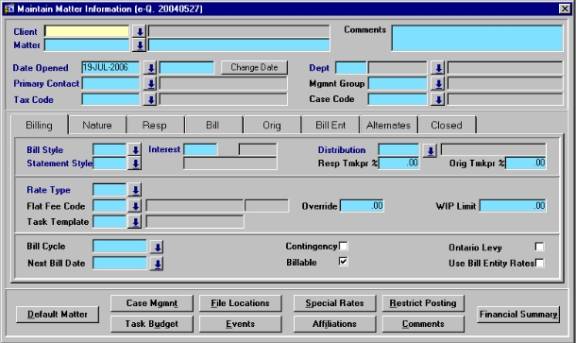
Figure
11 – The Maintain Matter Screen
-
In
the Maintain Matter screen, press [F7] to switch to enter query mode
-
In
the Client and Matter fields, enter the numbers for the Client/Matter you
are closing
-
Press
[F8] to execute the query
-
At
the bottom of the screen, click the Case Mgmnt button
-
The
Case Schedules screen will be launched, as seen in Figure 12
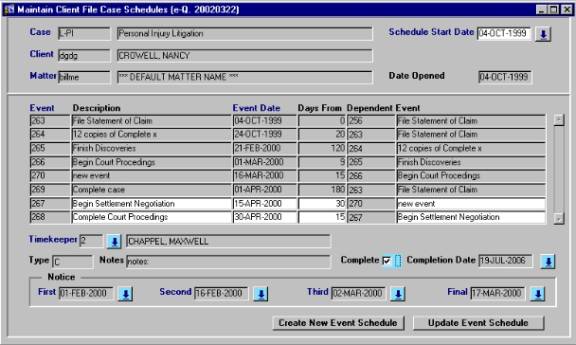
Figure 12 – Case Schedules – Closing
Outstanding Events
-
Note:
All completed events are displayed in grey, while all uncompleted events are
displayed in white
-
To
mark the event as being completed, the user must highlight the event record,
and then check the Complete field with a mouse click or by pressing
the space bar
-
The
Completion Date field will automatically fill with the current system
date
-
Once
all records are marked as complete, the user must press [F10] or click the
Save button on the menu bar to post the changes
-
Once
all events are marked as Complete, the user can return to the Close
Client Matters screen and check the Closed field for that record
to close the file
To
close a file with valuable property in trust :
-
If
a Matter has property in trust with the firm, the user will be alerted with
a message when they try to close the Matter, stating that there are
outstanding properties for this Matter, as seen in Figure 13
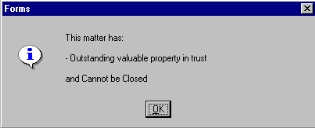
Figure
13 – Closing Matter with Property in Trust
-
All
properties must be returned to the Client, and then removed from the
Valuable Client Property program
-
Follow
the menu path:
Maintenance à
Entity à
Client/Matter à
Maintain Valuable Client Property
-
The
Valuable Client Property screen will be launched, as seen in Figure
14
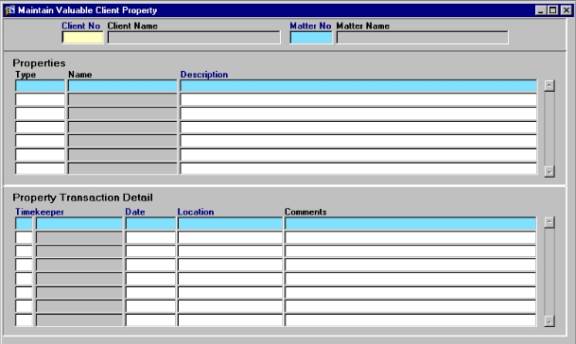
Figure
14 – The Valuable Client Property Screen
-
In
the Client No and Matter No fields, enter the numbers of the
Client/Matter that you are closing
-
Press
[F8] to execute the query and return any property records associated
with that matter
-
If
the properties have been returned to the client, each record can be
highlighted and then deleted by
-
Remember,
all child records (i.e. all Property Transaction Details records) must be
deleted before the Parent record (i.e. Property record) can be deleted by
pressing [Shift] + [F6]
OR click the Delete (red X) button on the menu bar
-
Once
all properties are resolved, the user can return to the Close Client
Matters screen and check the Closed field for that record to
close the file
To
close a file with outstanding interest:
-
If
a file has outstanding interest that needs to be written off before closing
the file, the user can simply click the Write off Interest button on
the Close Client Files screen
-
The
user will be presented with a message, asking them to verify the action, as
seen in Figure 15
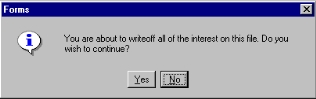
Figure 15 – Writing off Outstanding
Interest
-
To
continue, the user must click the [Yes] button on the message screen
-
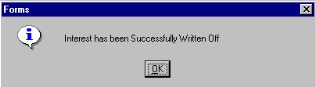
When
the process is complete, the user will be alerted with another message, as
seen in Figure 16
-
At
this point, the user can check the Closed field on the Close
Client Files screen, with either a mouse click or by pressing the space
bar